Check the Requirements for Free Friend Sharing
Check the account, age verification, and Maturity & Compliance requirements for sharing a Private Roblox game with eligible friends at no cost.
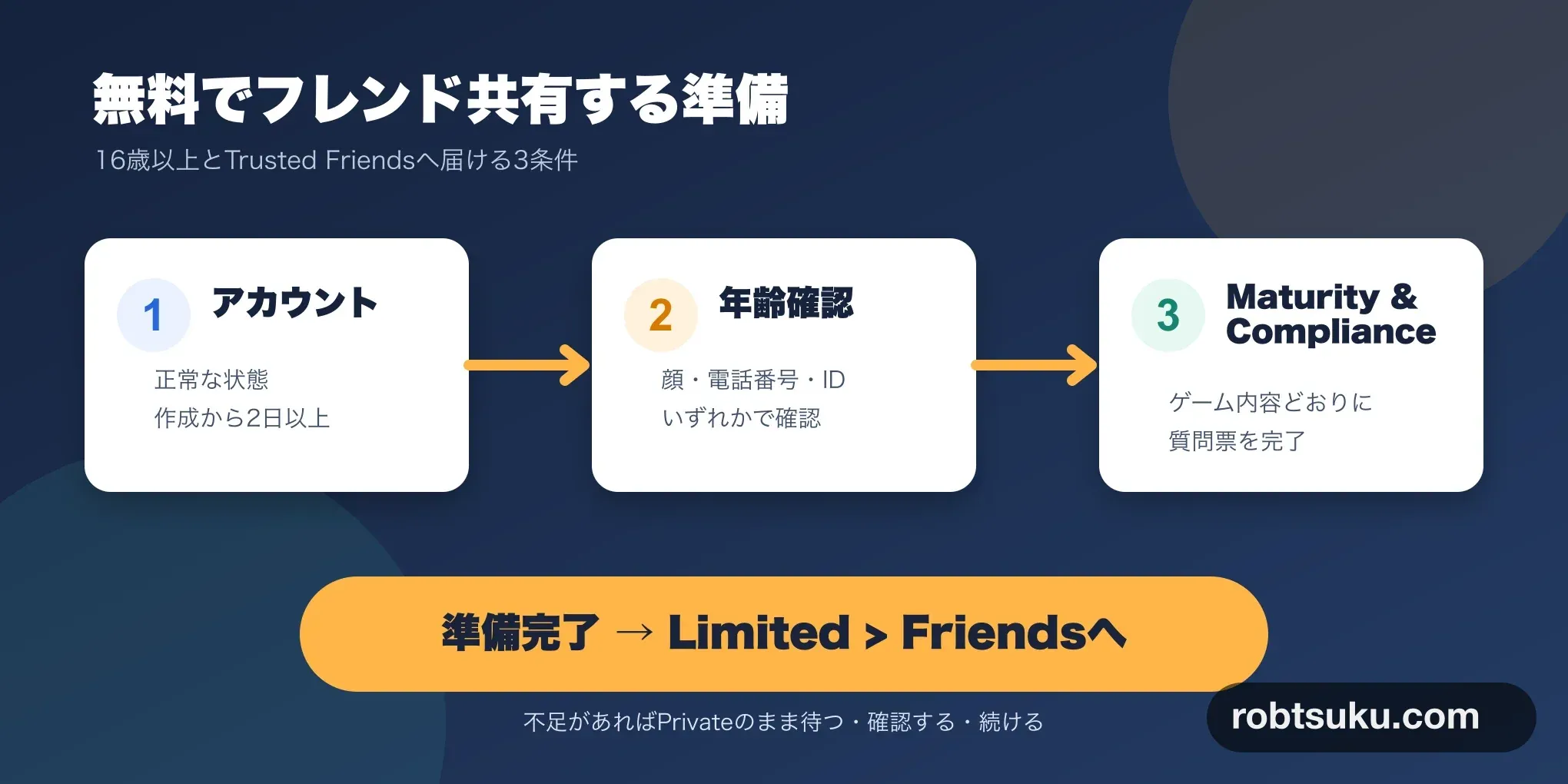
The previous lesson saved your completed obby to Roblox as a Private experience. Before changing its Audience to Limited > Friends, check whether your account and experience meet the current requirements for free sharing.
Figure guide: The three cards mean: 1. an account in good standing that is at least two days old; 2. age verification by facial age estimation, phone number, or government ID; and 3. a completed Maturity & Compliance Questionnaire. When all three are complete, the next step is
Limited > Friends; otherwise, keep the experience Private.
This lesson does not change the Audience. A valid result is Ready, Missing a requirement, or Keep it Private. Your experience and local place file remain editable even if sharing is not currently available.
Publishing rules can change. The requirements below were rechecked against Roblox Creator Hub on July 30, 2026.
Tip: Why publishing has more requirements
Roblox introduced publishing requirements in stages during 2025 and 2026. Its 2025 announcement describes reducing copied or inappropriate games posted from disposable accounts. The 2026 publishing and evaluation announcement also describes protecting users under 16, maintaining trust with users and parents, and responding to regional safety rules.
Creating a game and distributing it to a broad audience are separate activities. You can keep building and testing a Private game without satisfying wider publishing requirements. More creator verification and safety review apply as the audience grows and includes younger users.
Three requirements for free sharing
Roblox’s Roblox Kids and Select documentation lists three requirements for reaching age-checked users 16 and older and Trusted Friends:
- The account is in good standing and at least two days old.
- Age verification is complete through facial age estimation, a phone number, or government ID.
- The experience’s Maturity & Compliance Questionnaire is complete.
This audience does not require a publishing fee or a Roblox Plus or Premium subscription. When all three items are complete, an individually owned experience is ready for the Limited > Friends step in the next lesson.
Tip: Who counts as a Trusted Friend?
Trusted Friends are friends Roblox recognizes as eligible under its age-check and trust rules. Selecting
Friendsdoes not automatically admit every friend of every age or account state. Limited experiences also remain hidden from general search and the home page.
1. Check the account
Sign in to Creator Dashboard with the same Roblox account used in Studio. An account that does not own the experience cannot change its Audience.
For a newly created account, waiting until it is two days old is the correct next action. If the account displays a warning or restriction, read that message before changing Audience. Roblox makes the final account-status decision when you save the Audience setting, so use the result shown there as the final check.
Decide whether you or a parent or guardian will complete age verification. The available methods include facial age estimation, a phone number, and government ID. Never place those personal details in an article screenshot or send them through chat.
Tip: Complete identity checks yourself or with a parent
Your face, phone number, and identification documents are sensitive information. This lesson only asks whether verification is complete; it does not tell you what personal data to enter. If you are a minor and are unsure, review the official screen with a parent or guardian.
You can continue building the Private experience if you decide not to complete age verification. Keeping it Private is a valid choice.
2. Open Maturity & Compliance
The questionnaire tells Roblox what players can encounter in the experience. Missing or inaccurate information can restrict who can play, so review it before sharing and whenever the content changes.
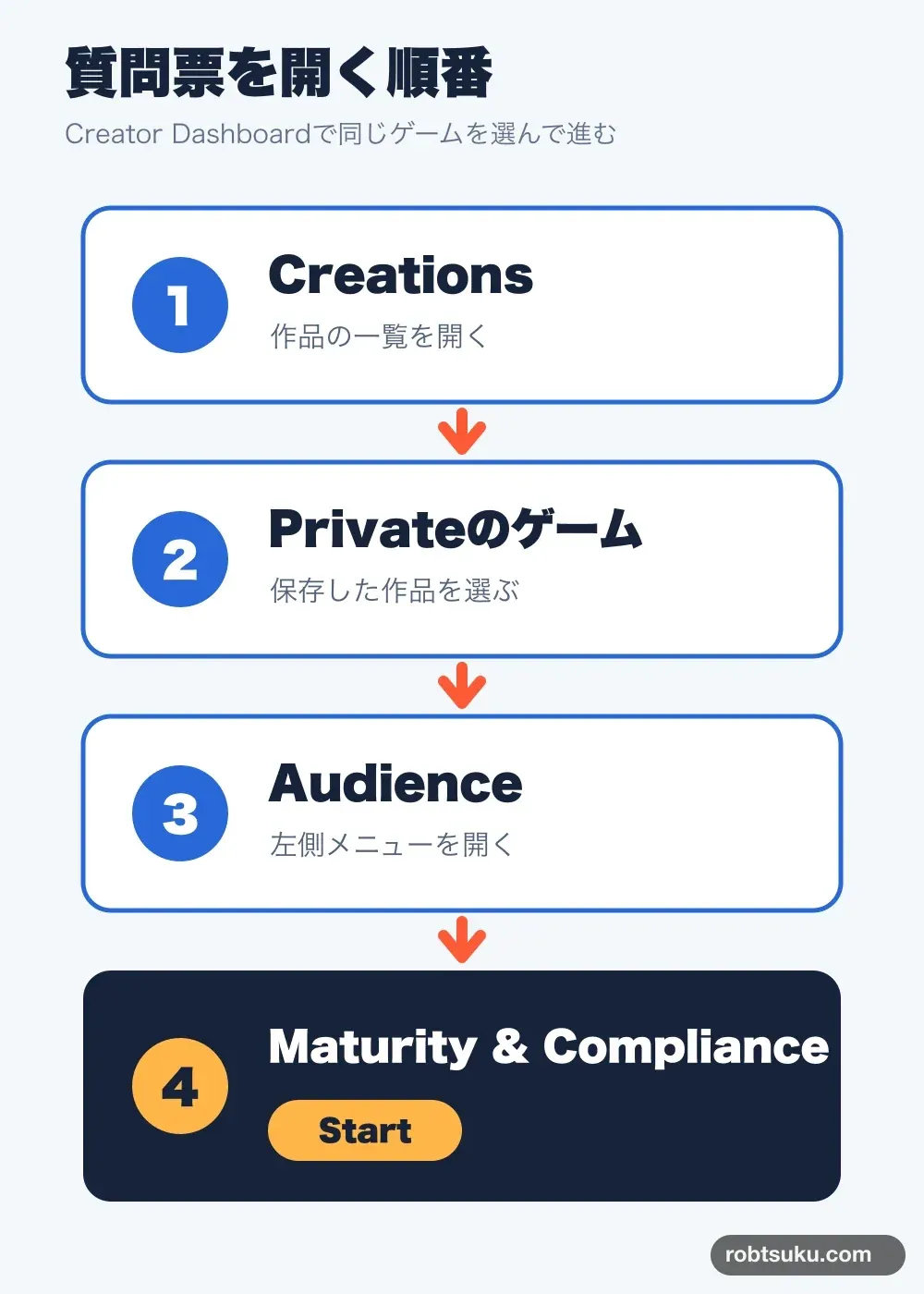
Figure guide: 1. Open Creations. 2. Select the Private experience. 3. Open Audience in the left navigation. 4. Choose Maturity & Compliance and select Start the first time.
The same sequence appears in Roblox’s Content maturity and compliance documentation: open the experience’s Overview, navigate to Audience > Maturity & Compliance, and start the questionnaire.
If the entry is missing, confirm that Creator Dashboard is showing the experience settings rather than your profile or an individual place. Return to the page where Overview and Audience appear in the left navigation.
3. Answer for the content players can encounter
Base every answer on the most mature or extreme content a player can encounter. The questionnaire checks categories and frequency, including violence, blood, fear, and crude humor. Questionnaire Preview then shows your answers, maturity label, content descriptors, and any regional compliance result.
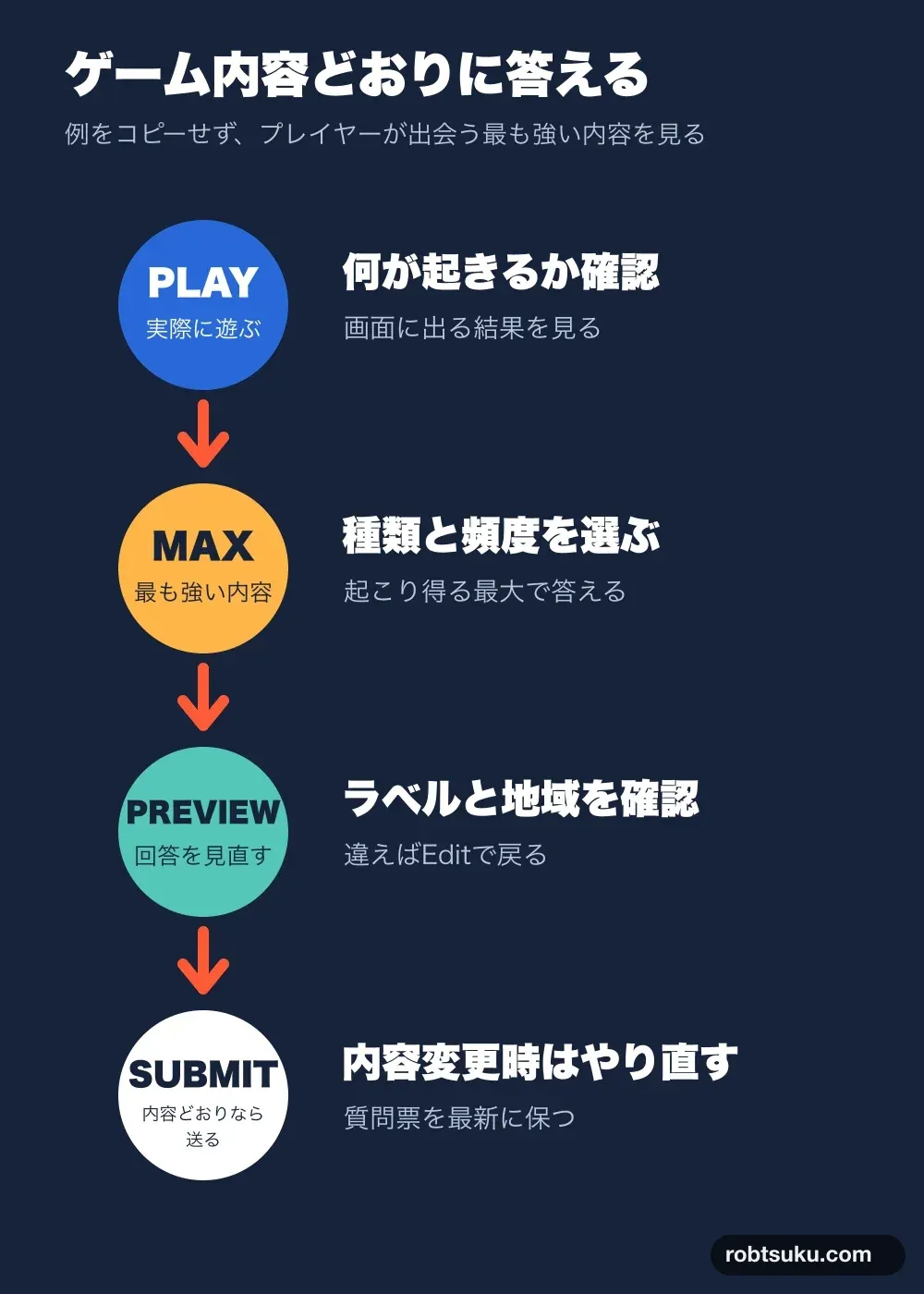
Figure guide: Play the game and observe what happens; answer for the maximum type and frequency players can encounter; review the label and regional result in Preview and use Edit when needed; submit only when the answers match the game, then repeat the questionnaire after relevant content changes.
This obby sets a character’s Health to 0 after lava contact and then respawns the character. Roblox’s violence guidance includes unrealistic results such as a body disappearing when health reaches zero as an example of mild violence. Play your own version and answer from the result and frequency actually shown.
Do not copy somebody else’s answers. Adding a model, image, sound, weapon, chat feature, or another mechanic can change the correct response. Read the explanation for any uncertain question and select the strongest content that can occur in your game.
After answering every page, inspect Questionnaire Preview. Use Edit for an incorrect answer or Submit when the preview matches the game. You can repeat the questionnaire later, and Roblox requires updated answers when a game change affects them.
The maturity label is generated from the answers. It is not a field where you select the age group you want. If the result is unexpected, correct an inaccurate answer or change the game content rather than understating what players can encounter.
All-ages publishing has different requirements
This lesson prepares only for the free audience of age-checked users 16 and older and Trusted Friends. Reaching Roblox Kids ages 5–8 and Roblox Select ages 9–15 requires the three checks above plus:
- government-ID verification or a linked parental account;
- two-step verification;
- an active Roblox Plus or Premium subscription for at least two consecutive months, or a refundable per-game fee;
- an evaluation process that currently includes 500 unique plays from qualifying highly engaged players within a 60-day window.
These belong to the separate all-ages publishing route. The beginner course does not pay a fee or publish for all ages. Do not select Public; the next lesson uses only Limited > Friends.
Record your readiness
Mark the state of each row:
| Check | Ready | If it is missing |
|---|---|---|
| Account is in good standing and at least two days old | □ | Keep the experience Private until a new account is old enough |
| Age verification is complete | □ | Choose an official verification method yourself or with a parent |
| Maturity & Compliance is complete | □ | Review the actual game and answer the questionnaire accurately |
| All-ages publishing is not selected | □ | Leave Audience unchanged and return to Private |
All four checks mean Ready. If one is missing, write down that item and its next action; that still completes this lesson. If you do not want age verification or cannot meet a requirement, choose Keep it Private.
The next lesson is only for a ready account. It changes Audience to Limited > Friends and asks an eligible friend to reach the GOAL in the Roblox app. Leave the current Audience as Private until you begin that lesson.
Previous: Publish a Roblox Game as Private
Next: Share a Roblox Game with Eligible Friends