Display a Coin Counter in Roblox Studio
Build a ScreenGui and TextLabel that watches Score and updates immediately when a player collects, receives, or spends in-game coins.
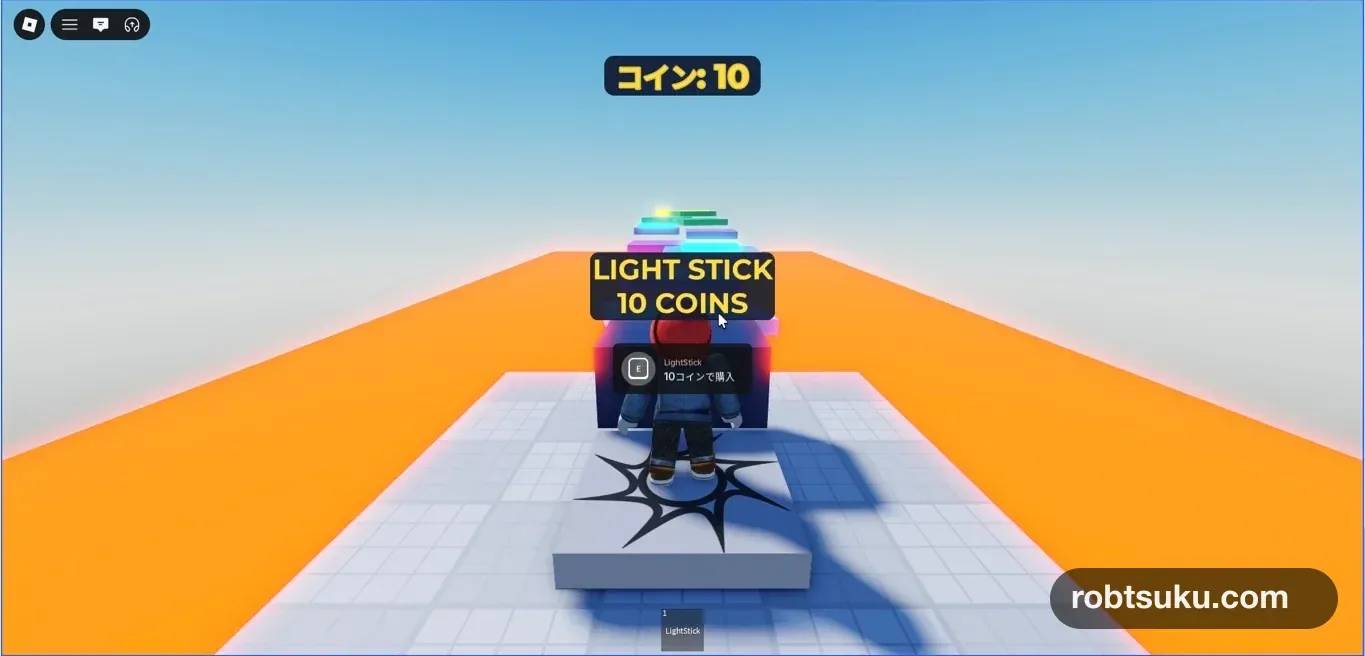
Add a counter at the top of the screen that starts at Coins: 0 and immediately follows the player’s current Score. Collecting three coins changes it to 3, a server-side grant can change it to 103, and spending 10 at the shop updates it again. This takes about six minutes and does not require Robux, external assets, or publishing.
Figure guide: The shared capture uses the original Japanese label
コイン, which means Coins. Your localized TextLabel will showCoins: 10in the same position.
Start after completing the collectible coins guide so that leaderstats > Score already changes on the server. The 10-coin Tool shop is useful for testing a decrease, but the counter also works without it. A Developer Product is optional, and this lesson does not make a real-Robux purchase.
1. Create a ScreenGui and TextLabel
Stop Play. In Edit mode, add a ScreenGui under StarterGui and rename it CoinCounterGui. Add a TextLabel inside it and rename the label CoinCounter.
StarterGui
└─ CoinCounterGui (ScreenGui)
   └─ CoinCounter (TextLabel)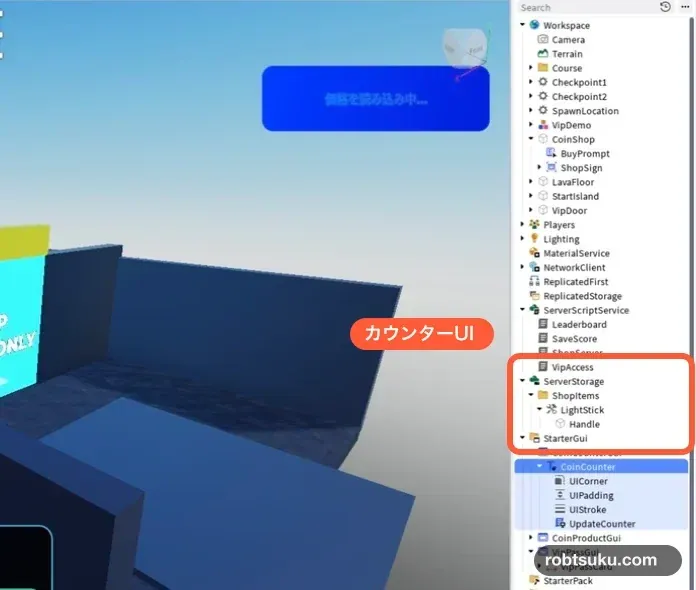
Tip — ScreenGui contains on-screen UI
A
ScreenGuigroups interface elements that appear over the game view. Roblox copies it fromStarterGuito each player’s screen. Unlike a Part, it stays with the camera instead of occupying a place in the 3D world.
Select CoinCounter and set these Properties. If a value field is difficult to enter, expand the property with its arrow and edit the X and Y components separately.
| Property | Value |
|---|---|
AnchorPoint |
0.5, 0 |
Position |
{0.5, 0}, {0, 20} |
Size |
{0, 220}, {0, 56} |
Text |
Coins: 0 |
TextScaled |
on |
FontFace |
GothamBold |
BackgroundColor3 |
dark navy |
TextColor3 |
yellow |
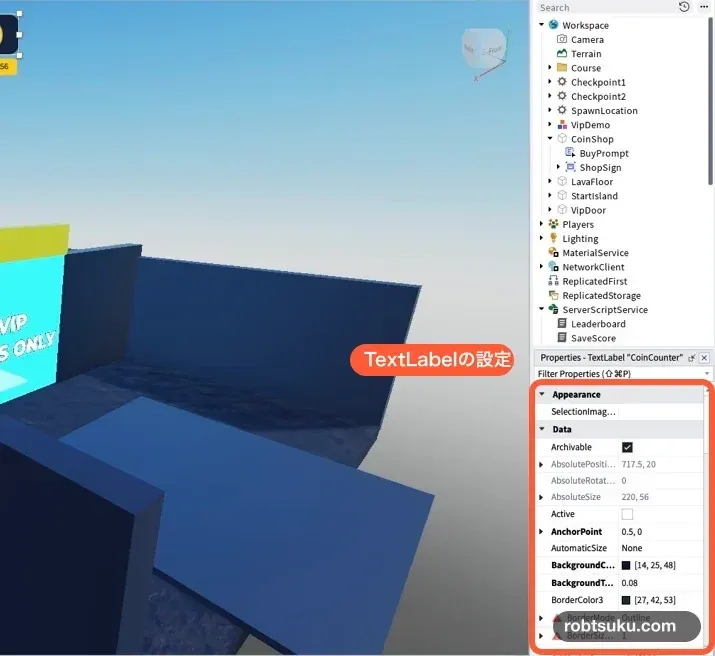
Select the parent CoinCounterGui and turn off ResetOnSpawn. If the avatar touches lava and respawns, the same UI stays active. When Score remains on the Player during respawn, the displayed value remains current too.
AnchorPoint.X = 0.5 and a Position X Scale of 0.5 center the label across different screen widths. The Y Offset of 20 supplies a fixed gap from the top. You may add a UICorner and set CornerRadius to 0, 14; visual styling does not change the update logic.
Tip — TextLabel displays text
A
TextLabelshows information rather than accepting player input. Here it joins the wordCoinswith the current Score, such asCoins: 3.
2. Watch Score for changes
Add a LocalScript directly inside CoinCounter and rename it UpdateCounter. Replace its contents with:
local Players = game:GetService("Players")
local player = Players.LocalPlayer
local counter = script.Parent
local score = player
	:WaitForChild("leaderstats")
	:WaitForChild("Score")

local function updateCounter()
	counter.Text = "Coins: " .. score.Value
end

updateCounter()
score.Changed:Connect(updateCounter)
The UI belongs to an individual player, so this code runs in a LocalScript. LocalPlayer finds that player’s Score, and updateCounter() writes the current value into the TextLabel.
The first updateCounter() call displays the value that already exists when the script starts. The score.Changed connection then calls the same function whenever the value changes. Collecting coins and spending coins do not need separate UI scripts.
In "Coins: " .. score.Value, .. joins the text on the left to the number on the right. If Score is 3, the result is Coins: 3. script.Parent must be the CoinCounter TextLabel. If you place the LocalScript directly under CoinCounterGui, its parent is a ScreenGui and it has no Text property to update.
Roblox’s UI documentation describes placing on-screen UI in StarterGui so each player receives it in PlayerGui. Keep this script display-only; the server remains responsible for changing Score.
Tip — WaitForChild waits for an object to exist
The server creates
leaderstatsandScoreafter the player joins. They may not exist when this LocalScript starts.WaitForChild()pauses this path until each required object appears.
3. Keep one update path
The collectible Script, Developer Product handler, and coin shop all change the server’s Score.Value. The counter does not need to know why the value changed. A future treasure chest or finish reward will also appear automatically if its server Script updates the same Score.
Do not change only the TextLabel from a LocalScript. Writing Coins: 103 on one player’s screen does not make the server’s Score equal 103. Keep the balance on the server and use the LocalScript only to display it.
4. Test the initial value and collected coins
Press Play. The counter should appear at the top center and match the current Score. In a new unsaved project, it will show Coins: 0.
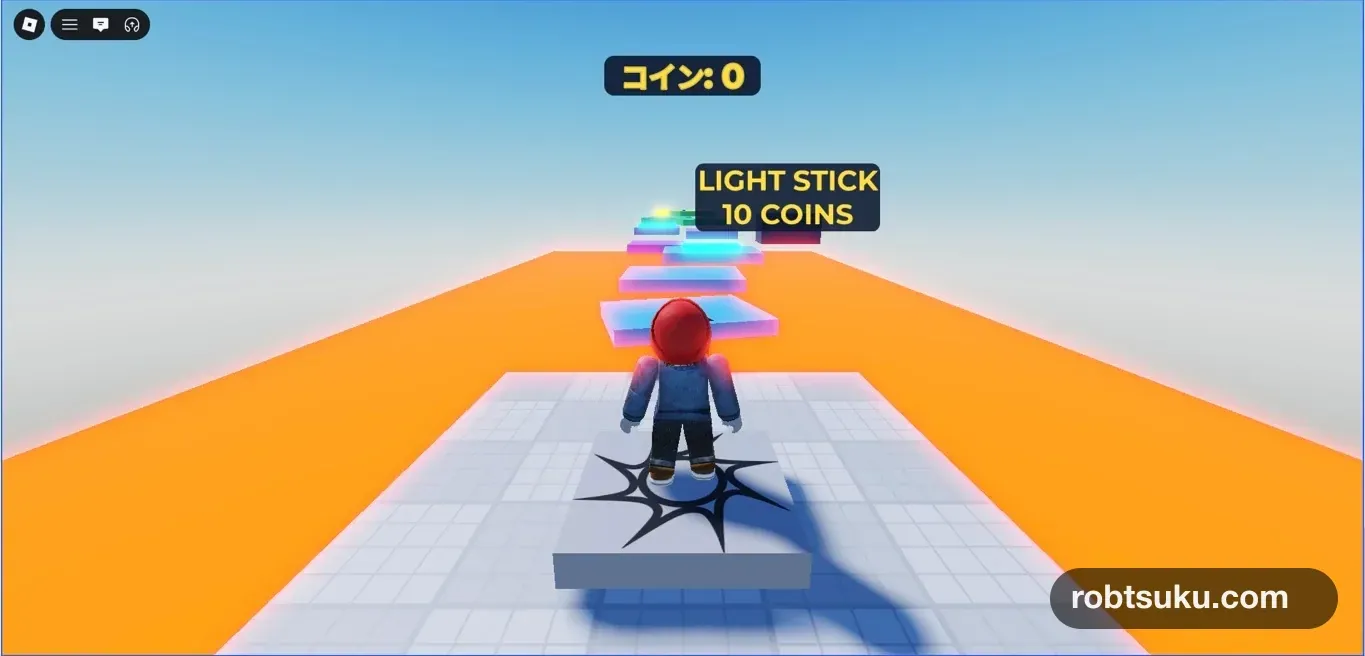
Collect the three coins from the collectible coins lesson. Both the player-list Score and the on-screen counter should change to 3.
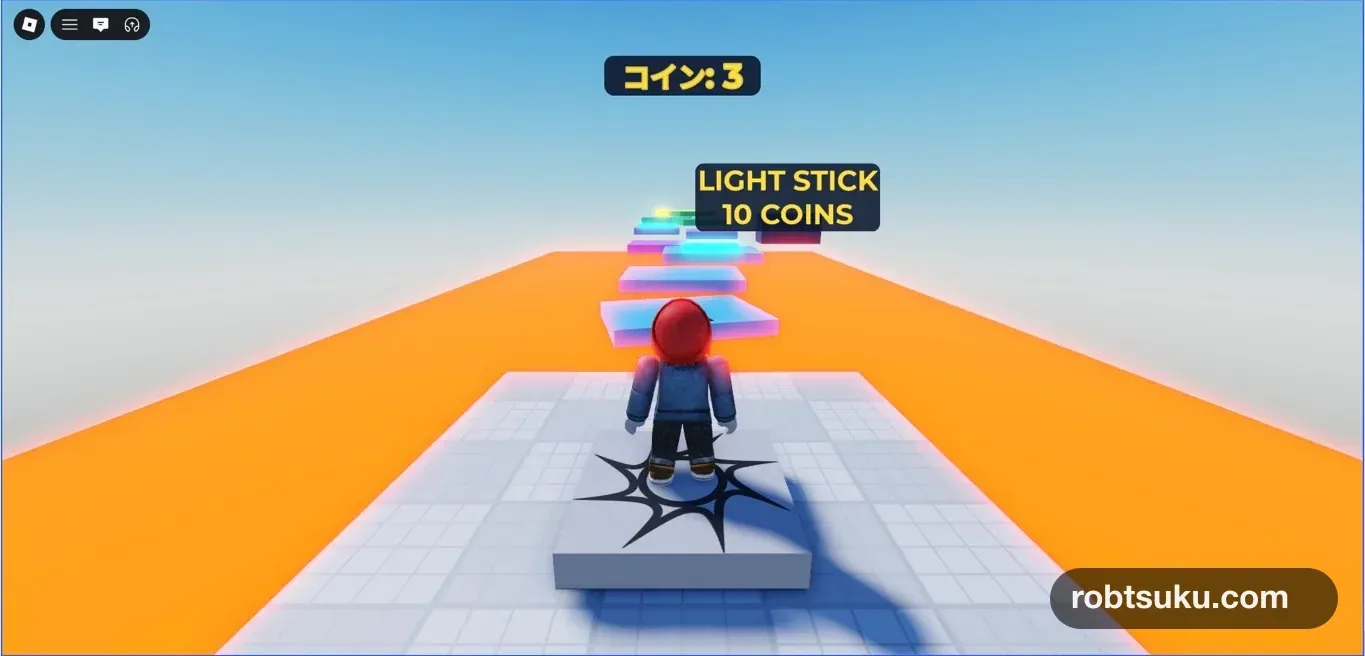
No rejoin or UI button is required. Changed runs as soon as Score.Value changes.
Resize the game view and check that the counter remains centered near the top. If it shifts to one side, confirm that the Position X value uses Scale 0.5, not a large fixed Offset.
5. Test another grant and a shop purchase
If you completed the Developer Product coin guide, use its no-charge Studio test path to add 100. A change from 3 to 103 proves that the counter follows the same Score even when the source is different. Skip this check if you have not created the product.
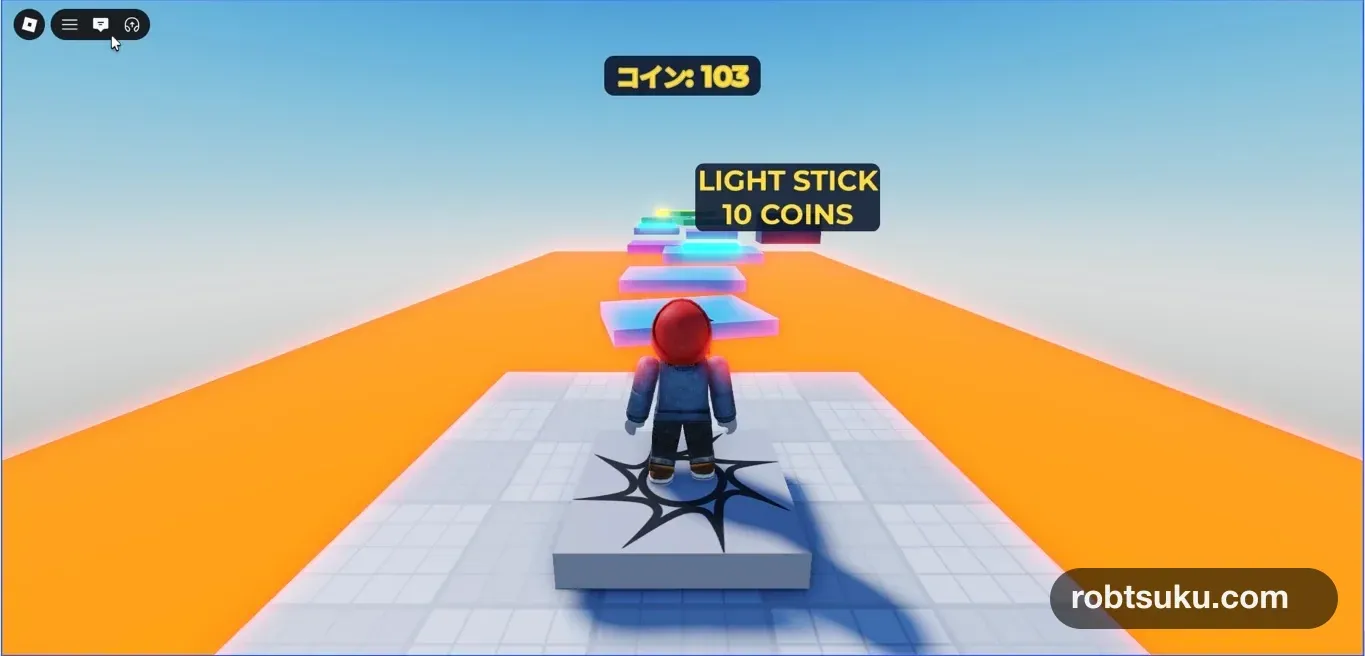
For a decrease, set Score to 20 and buy LightStick from the 10-coin shop. The server should change Score to 10, the counter should show Coins: 10, and one Tool should appear in the hotbar.
The LocalScript does not know the price or item name. It only sees the resulting Score change, so adding another valid use for coins does not require counter changes.
The counter is complete once it follows collection from 0 to 3. The Developer Product and shop checks exercise extra update sources; neither changes this guide’s free completion requirement.
Press Stop, then begin another Play session. The counter should display the current Score immediately. If your game restores a saved value instead of 0, that restored value is the correct initial display.
Troubleshooting
- The UI is missing: Check that
CoinCounterGuiis underStarterGuiand itsEnabledproperty is on. - It always says
Coins: 0: Use aLocalScript, not a regular Script, and place it directly insideCoinCounter. - Output reports an infinite yield: Confirm that the server creates
leaderstatsandScorewith the same capitalization. - The label sits too far left: Set
AnchorPointto0.5, 0and Position X Scale to0.5. - You want the UI to add coins: Keep all balance changes in the server Scripts. This LocalScript should only read Score.
Completion check
- The counter matches Score as soon as Play starts.
- Collecting three coins changes both values to 3.
- Any valid server-side grant updates the counter without a rejoin.
- Spending 10 coins updates both Score and the counter.
- The counter stays centered on narrow and wide screens.
- The LocalScript never changes the balance.
The player can now see the current coin balance without opening the player list.
Official sources
Make Collectible Coins in Roblox Studio
Build three yellow coins that disappear once when touched and increase the collecting player’s leaderboard Score from 0 to 3.
Build this feature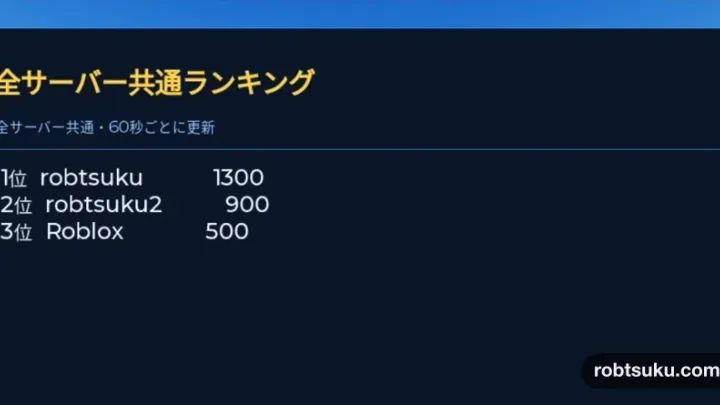
Build a Global Leaderboard in Roblox Studio
Save Score values in an Ordered Data Store and display the ten highest scores from every server on an in-game leaderboard.
Build this feature
How to Add a Score Leaderboard in Roblox Studio
Add a Score column to Roblox’s built-in player list and give every player a starting value of 0 with one server Script.
Build this feature