How to Add a Score Leaderboard in Roblox Studio
Add a Score column to Roblox’s built-in player list and give every player a starting value of 0 with one server Script.
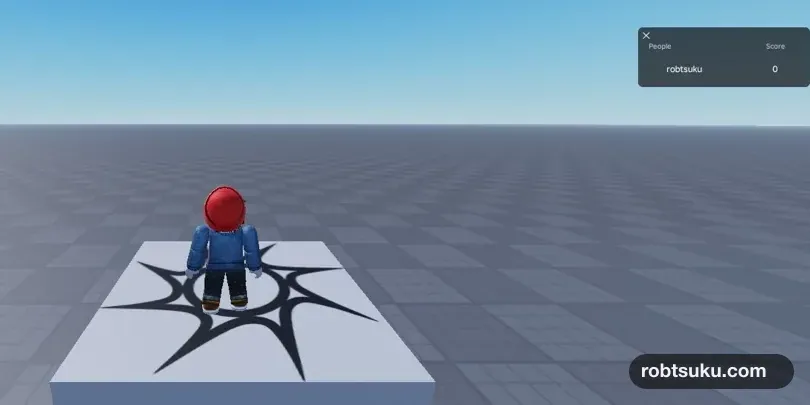
Put a Score column beside every player’s name without building a custom interface. Roblox already includes a player list; one server Script supplies the value that appears in it.
This takes about 5–8 minutes, costs no Robux, and works in an unpublished Studio project. Press Play when you finish. If the player list shows your name, a Score heading, and the value 0, the feature is working.
Before you start
You can use a new Baseplate or an existing project. If Play, Stop, or Explorer are unfamiliar, complete Roblox Studio Basics first. Make Deadly Lava with Luau shows how to add and edit a Script.
This guide builds Roblox’s standard in-experience leaderboard. It lists values for players connected to the current server. It is not a saved, all-time ranking across every server.
1. Add a Script to ServerScriptService
Find ServerScriptService in Explorer. Click its + button, add a Script, and rename the new Script Leaderboard.
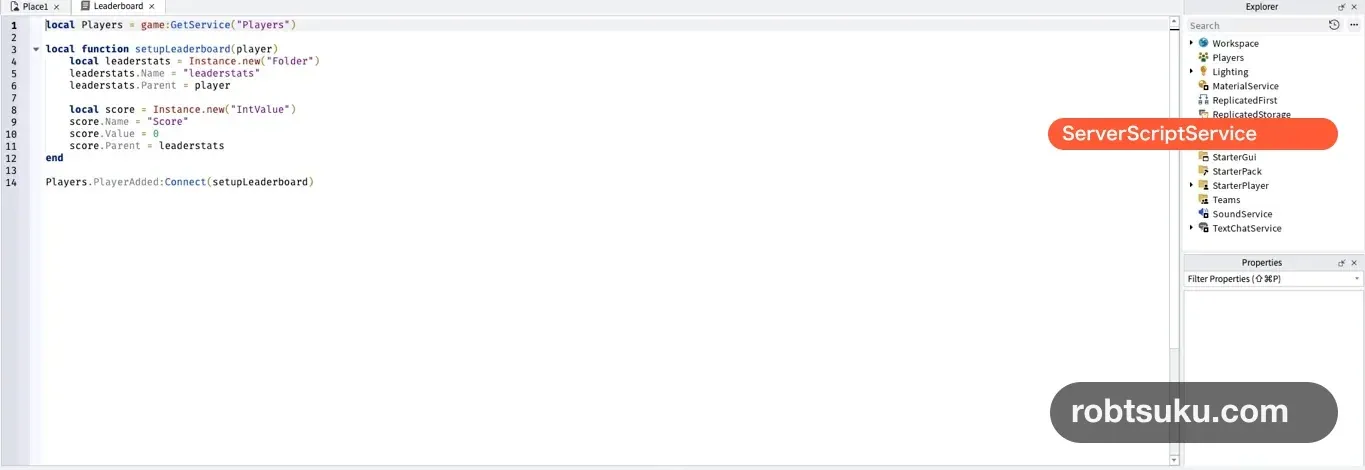
ServerScriptService holds Scripts that run on the server. The server creates the shared game state that every player must agree on, so it is the right place to create each player’s Score.
Tip: If Explorer is closed
Open Window > Explorer from the Studio toolbar.
2. Create a Score for each player
Delete the starter code in Leaderboard, then paste this:
local Players = game:GetService("Players")

local function setupLeaderboard(player)
	local leaderstats = Instance.new("Folder")
	leaderstats.Name = "leaderstats"
	leaderstats.Parent = player

	local score = Instance.new("IntValue")
	score.Name = "Score"
	score.Value = 0
	score.Parent = leaderstats
end

Players.PlayerAdded:Connect(setupLeaderboard)
The Script performs three actions:
- It retrieves the
Playersservice. - When somebody joins, it creates a Folder named
leaderstatsinside that Player. - It puts an integer named
Score, starting at0, inside the Folder.
Tip: What is a service?
A service is a built-in group of Roblox features.
game:GetService("Players")retrieves the service that tracks the people in the current server. In a two-player test, it contains two separate Player objects.
Players.PlayerAdded is an event. An event sends a signal when something happens; this one sends the new Player to setupLeaderboard when that person joins.
During Play, the objects have this structure:
Players
└─ YourPlayerName
   └─ leaderstats
      └─ Score = 0
The parent-child structure matters. Do not put leaderstats in ServerScriptService, and do not put Score directly under the Player. Roblox looks specifically for values inside the Player’s leaderstats Folder.
Keep leaderstats lowercase
The Folder name must be exactly leaderstats. Roblox recognizes that reserved lowercase name and displays the Folder’s values in the player list. Leaderstats and leaderStats will not work.
The Script itself may have another name, but keeping Leaderboard makes it easy to find later.
Why use an IntValue?
An IntValue stores one whole number. Values such as 0, 3, and 100 fit a score or coin count without a decimal point.
score.Name = "Score"sets the column heading.score.Value = 0sets the value shown immediately after joining.score.Parent = leaderstatsplaces it in the group Roblox displays.
The Script sets the Name and Value before assigning the Parent. Other code is less likely to see a half-configured object, and the same order remains useful when you add more statistics later.
Why the server creates the value
A value changed only on one player’s screen is not reliable shared game state. A normal Script in ServerScriptService creates the Score for each Player on the server, then Roblox replicates that result to the connected clients.
Keep future score changes—collecting coins, earning rewards, or spending currency—on the server as well. A LocalScript may display a value, but it should not be the authority that decides a gameplay result.
3. Check Score 0 in Play
Press Play. When the character appears, press Tab to open the player list.
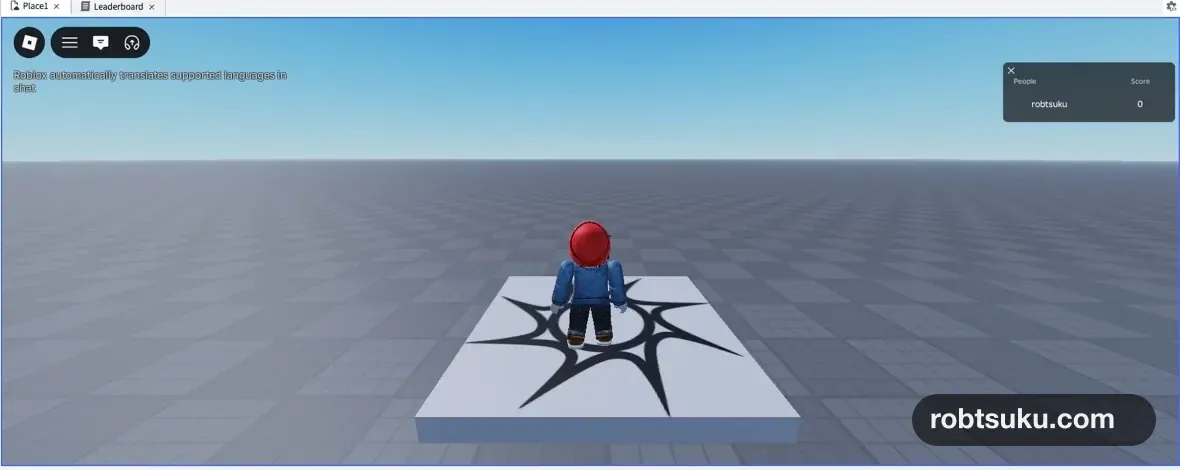
Check for these three items:
- the player-name column;
- the
Scorecolumn; 0beside your name.
The list may already be open in some Studio layouts. Press Tab again to close it. When the result is visible, press Stop to return to edit mode.
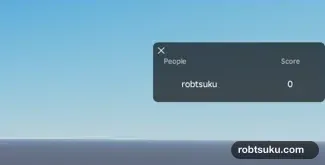
Press Play a second time and confirm that Score starts at 0 again. That reset is expected. The current Script creates a new Score with a value of 0 on every join; it does not save data between sessions.
If the Score column does not appear
Work through these checks in order:
Leaderboardis a normal Script insideServerScriptService.- The Folder name is exactly lowercase
leaderstats. score.Parentisleaderstats.- You pressed Stop and started a new Play after editing the code.
If Output contains a red error, open the first error and use its line number. Check quotation marks, parentheses, capitalization, and missing end keywords.
If the player list itself is hidden, press Tab while the character is playable. Pressing it in edit mode does not open the in-game list.
If Score is not 0, confirm that the line reads score.Value = 0. Also disable any older Script that creates another value named Score.
Optional: test with two players
Open Studio’s Server & Clients test mode, choose two clients, and start the session. Press Tab in each client. Both Player1 and Player2 should appear, and each should have an independent Score = 0.
One or two clients are enough for this check. Roblox’s Studio testing modes explain how the local server and client windows work. Use End Session when you finish so Studio closes the server and both clients together.
Completion check
ServerScriptServicecontainsLeaderboard.- The player list opens during Play.
- The list contains a
Scorecolumn. - Your row shows
0. - Output has no red error.
- A new Play starts from
0again.
The project can now display a server-owned score for every connected player. Build collectible coins next so touching each coin increases this value by one.
Official sources
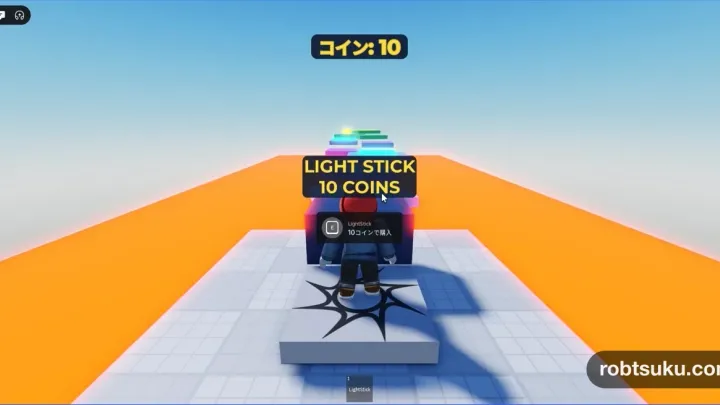
Display a Coin Counter in Roblox Studio
Build a ScreenGui and TextLabel that watches Score and updates immediately when a player collects, receives, or spends in-game coins.
Build this feature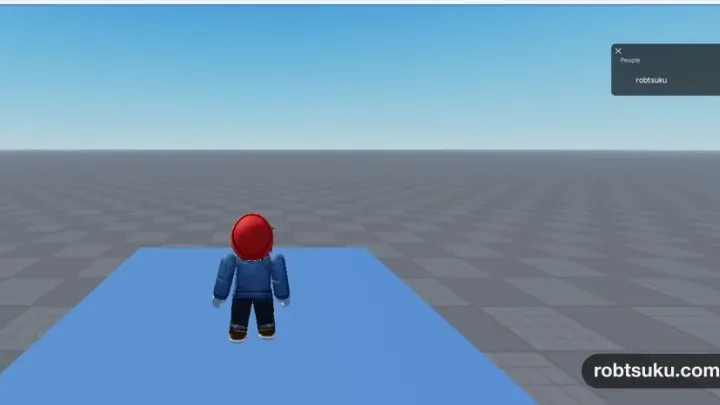
Make Collectible Coins in Roblox Studio
Build three yellow coins that disappear once when touched and increase the collecting player’s leaderboard Score from 0 to 3.
Build this feature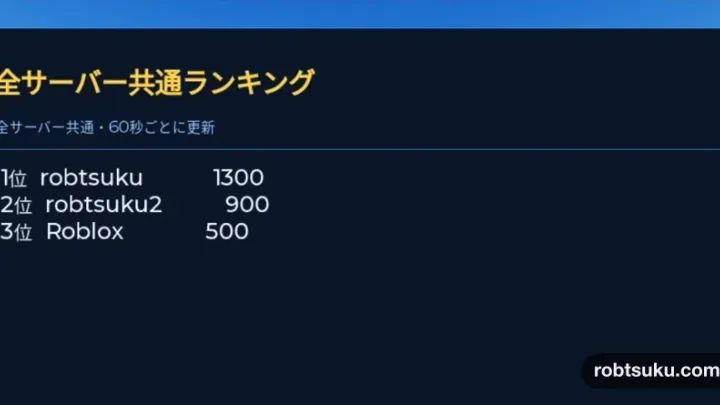
Build a Global Leaderboard in Roblox Studio
Save Score values in an Ordered Data Store and display the ten highest scores from every server on an in-game leaderboard.
Build this feature